CS3240 · IDP Final Submission · Individual Portfolio

CoNews
Event Discovery Service

A service within PropBank that helps ACGN community members discover, track, and attend conventions and events in Singapore — from browsing to ticket purchase in one flow.

StudentXiao Ao
GroupGroup 11
Super-app NamePropBank

What is CoNews?

CoNews is the event discovery and management service within PropBank. It addresses a core problem identified during user research: ACGN event information is scattered across Instagram, Telegram, Facebook event pages, and word-of-mouth, making it easy to miss smaller community conventions.

CoNews provides a centralised, filterable event feed with rich detail pages, integrated ticket purchase, directions, and reminders, all within the PropBank ecosystem so users can move seamlessly to related services (Marketplace, Workshops, CreatorHub, PropScan) without leaving the app.

Problem Statement

ACGN community members in Singapore struggle to discover upcoming conventions and smaller community events because information is fragmented across multiple external platforms, leading to missed events and a disjointed pre-event planning experience.

Core Features

Event Discovery

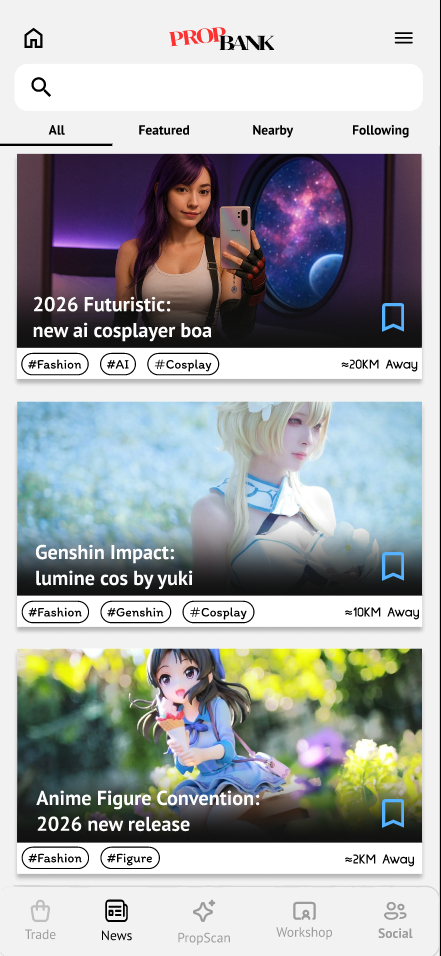
Browsable, filterable feed — event price, event type, date, location

Event Detail Page

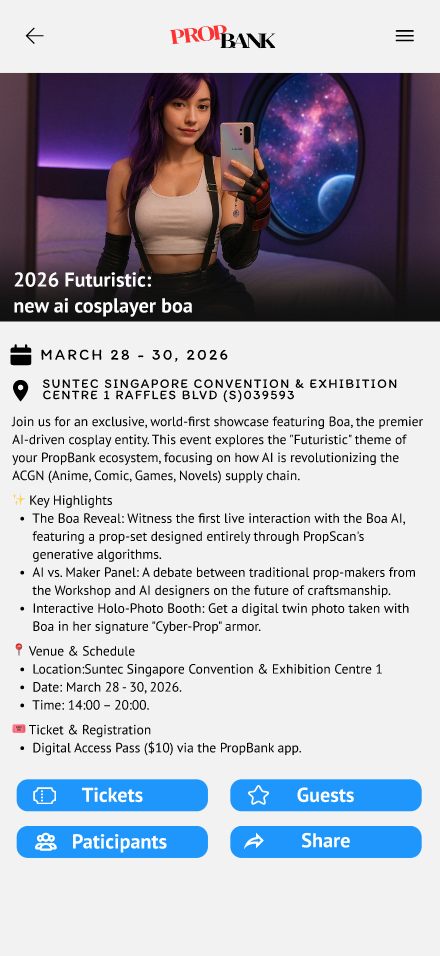
Full info: name, date/time, venue, booths, artist guests, short summary

Ticket Purchase

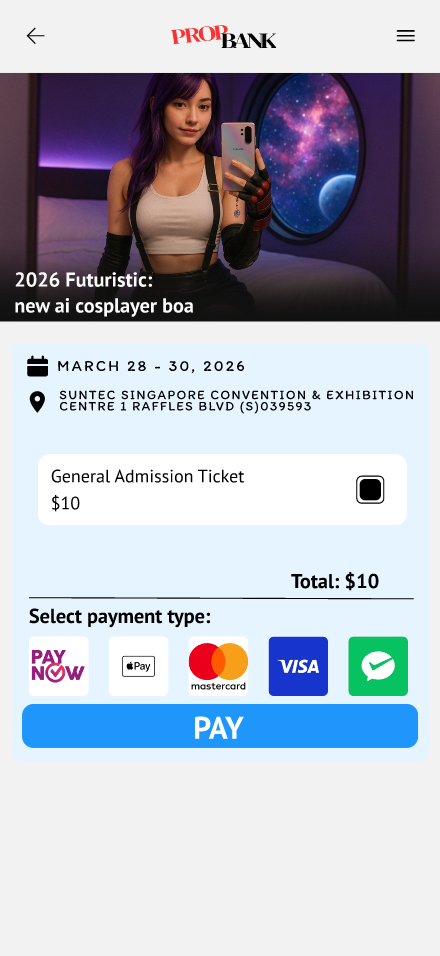
In-app integrated ticket buying with payment and stored ticket wallet

Directions & Map

Event venue directions and an in-event map showing booth layouts

Guests & Participants

See who is attending — guests, artists, featured cosplayers

Save, Share & Remind

Bookmark events, share with friends, set personalised reminders

Understanding the Event Seeker

Group-level Research (Informing CoNews)

The group conducted semi-structured interviews with 3 participants who had cosplayed or attended a convention within the past 2 years. The goal was to understand current workflows, pain points, and needs across the full PropBank ecosystem.

Key Insight for CoNews

Event discovery is fragmented and dependent on external channels.

The most recurring pain point: no reliable, centralised way to discover conventions - especially smaller ACGN events. Users rely on Instagram stories, Telegram group chats, and friends to find out about events.

Event Tracking Finding Friends at a Convention Live Crowds Reminders
"I only found out about [smaller con] two days before because my friend happened to post about it."
— Interview participant

Service-Level Persona — The Event Seeker

View Event Seeker Persona in Figma ↗

Archetype: The Event Seeker
Context: ACGN fan who attends 2–4 conventions per year but regularly misses smaller community events due to poor discoverability.

Goals

  • Keep up with conventions and smaller ACGN happenings in Singapore
  • Purchase tickets conveniently without leaving the platform
  • Know what booths, artists, and guests will be at an event
  • Set reminders so they don't miss events they care about
  • Share upcoming events with friends easily

Pain Points

  • Information scattered across Instagram, Telegram, Facebook
  • Smaller events easy to miss without inside knowledge
  • No single place for full event details + ticket purchase
  • No reminder system for ACGN-specific events

Task Flows & Wireframes

CoNews covers 5 key user tasks identified from user research and the refined MVP strategy.

Task 1 — Discover & Purchase Event Ticket

The primary entry-to-completion flow: user browses the CoNews feed, selects an event, views full details, and purchases a ticket — all within PropBank.
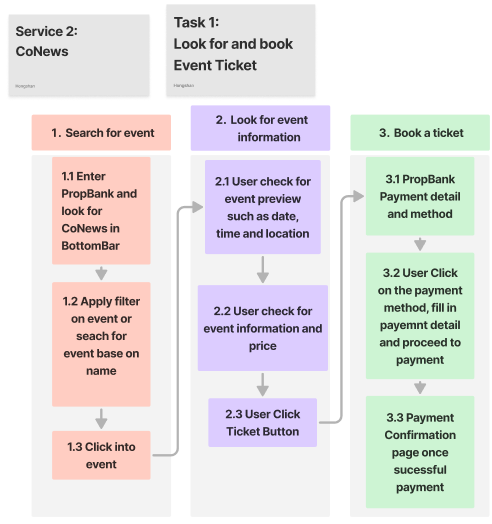
CoNews Feed
Select Event
Event Detail Page
Buy Ticket
Payment
Ticket Stored
Task 1 — Discover & Purchase Event Ticket wireframe

Design Decision — Task 1: Inline Ticket Purchase

The ticket purchase flow is handled entirely within PropBank rather than redirecting to an external ticketing site. This decision was driven by the user research finding that fragmented platforms are the core pain point — redirecting users out of the app would recreate exactly the disconnected experience we are solving.

The flow keeps payment details minimal and shows a clear confirmation with the ticket automatically stored in the user's in-app Ticket Storage, so there is no friction in retrieving it at the event venue.

Task 2 — Event Direction & Event Layout Map
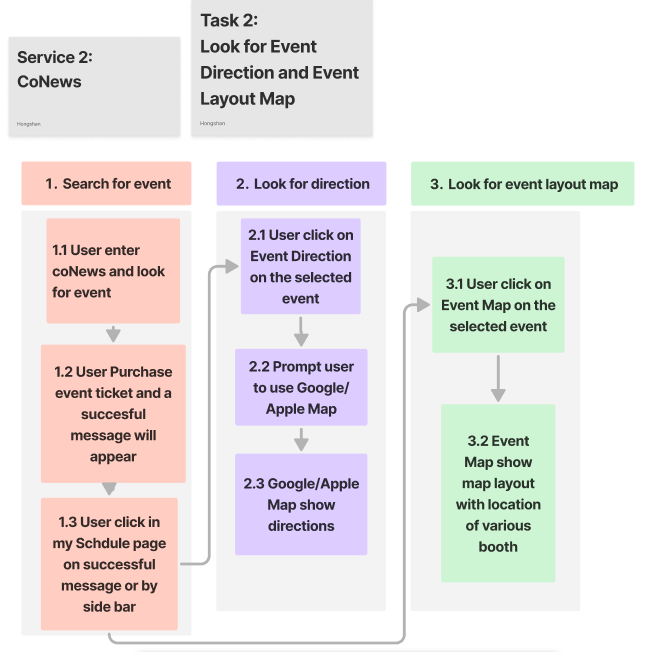
CoNews Feed
Purchase Ticket
My Schedule
Tap Direction → Google / Apple Maps
·
Tap Event Map → Booth Layout
Task 2 — Event Direction & Event Layout Map wireframe

Design Decision — Direction & Event Map Gated Behind Ticket Purchase

The Event Direction and Event Map features are only surfaced after a user has purchased a ticket. Users who have not bought a ticket cannot access these screens.

Rationale — Separation of Concerns: The event detail page serves users at the decision stage — they are evaluating whether to attend. Loading this page with navigation and booth-layout tabs adds information that is entirely irrelevant until the user has committed to going. Showing these prematurely creates visual noise and cognitive overload without adding value.

Once a ticket is purchased, the event moves into the user's My Schedule page, where Direction and Event Map become available. This context switch is intentional: the user is now in preparation mode rather than discovery mode, and the information presented matches exactly what they need at that stage — making the app feel purposeful and uncluttered.

Task 3 — Look for Guests & Friends Associated with the Event
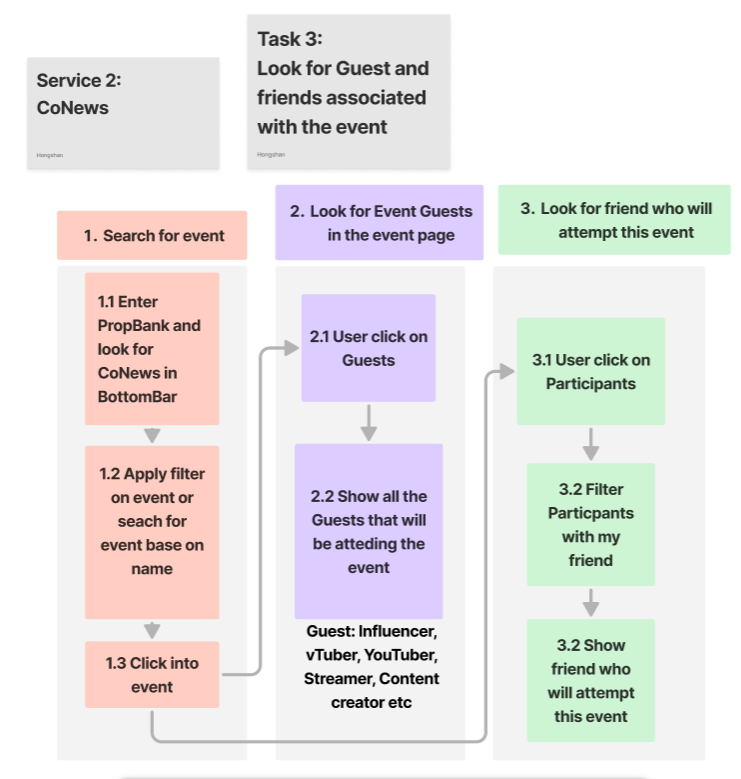
CoNews Feed
Event Detail
Tap Guests → View Influencers / Creators
·
Tap Participate → Filter by Friends → See Friends Attending
Task 3 — Look for Guests & Friends wireframe

Design Decision — Guests & Friends Available Before Ticket Purchase

The Guests and Participate tabs are accessible directly from the event detail page — no ticket required. Users can see which influencers, vTubers, YouTubers, and content creators will be attending, and whether any of their PropBank friends have also indicated they are going.

Rationale: For many ACGN fans, the decision to attend an event is driven by who is going — a favourite creator on the guest list or a friend's attendance can be the deciding factor. Surfacing this information during the discovery phase, before any purchase commitment, directly supports the user's decision-making process.

This contrasts with Direction and Event Map, which are only unlocked post-purchase — those are preparation tools, not decision tools. Keeping Guests and Participate always visible ensures the event page remains a persuasive and informative browsing experience without overwhelming the user with post-commitment logistics.

Task 4 — Share Event with PropBank Friends / Other Applications
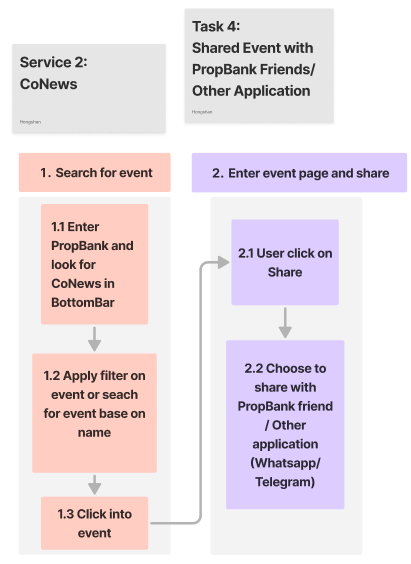
CoNews Feed
Event Detail
Tap Share
PropBank Friend · WhatsApp · Telegram
Task 4 — Share Event wireframe

Design Decision — Share Available Before Ticket Purchase

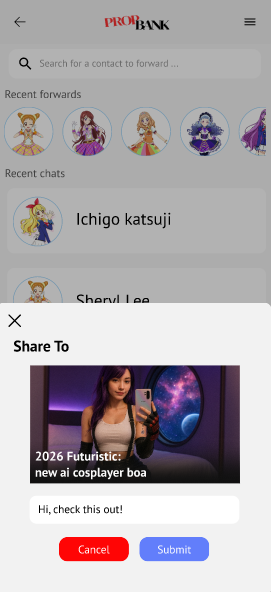
The Share function is accessible from the event detail page without requiring a ticket purchase. Users can share directly to PropBank friends or to external applications such as WhatsApp and Telegram.

Rationale — Social Communication as a Decision Tool: Attending an ACGN event is often a group activity. A user who discovers an interesting event may want to consult friends before committing to a purchase. Making Share available pre-purchase enables this natural social flow — the user can forward the event, discuss it with friends, and collectively decide to go, rather than having to buy a ticket first before being able to share it.

This positions Share as both a communication tool and a conversion driver — a shared event link can bring new users into CoNews while also helping the original user make a more confident purchase decision alongside their social circle.

Task 5 — View Purchase Ticket & Set Reminder
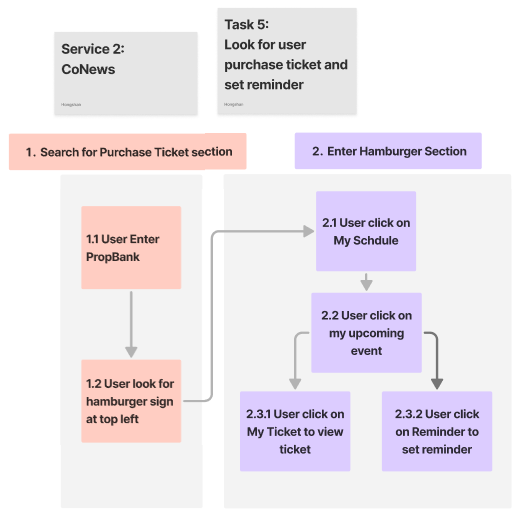
Ticket Purchased ✓
Hamburger Menu
My Schedule
Upcoming Event
View Ticket · Set Reminder
Task 5 — View Purchase Ticket & Set Reminder wireframe

Design Decision — Ticket & Reminder Centralised in My Schedule (Post-Purchase Only)

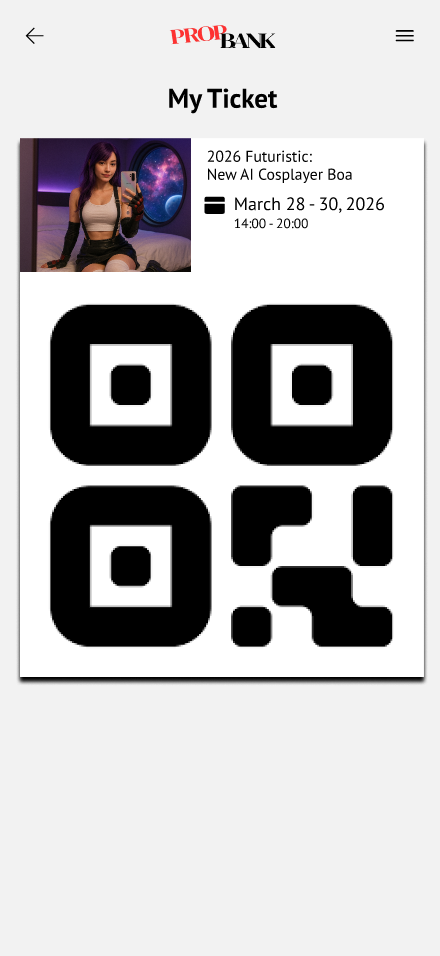
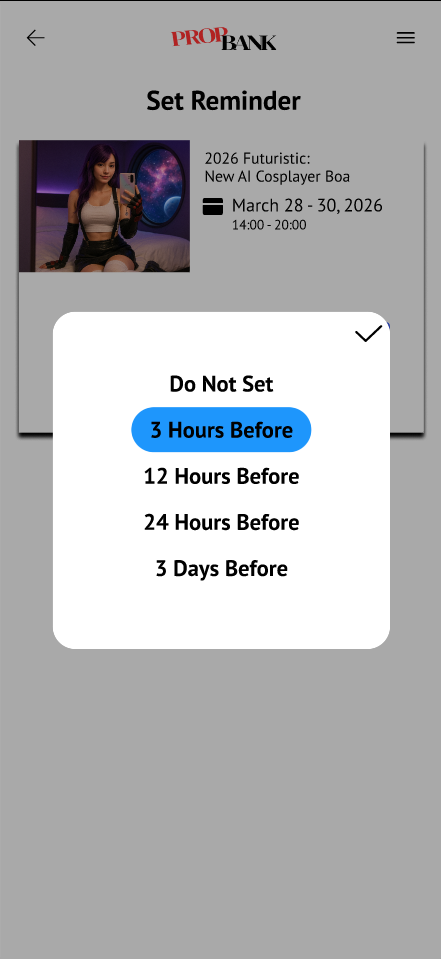
View Ticket and Set Reminder are only accessible after a ticket has been purchased. They are not exposed on the event detail page — instead, they live inside My Schedule, reached via the hamburger menu.

Rationale — Centralised Post-Purchase Hub: Once a user has committed to an event, their needs shift entirely to preparation and logistics. My Schedule acts as a single, dedicated space for all post-purchase activities — viewing the ticket, setting a reminder, checking directions, and viewing the event map. Grouping these together means users always know where to go after buying, reducing navigation friction and keeping the main event browsing experience uncluttered.

Placing Ticket and Reminder behind a purchase gate also keeps them meaningful — a reminder for an event you have not committed to attending has no practical value, and displaying a ticket that does not exist would be confusing. The gate ensures every item in My Schedule is actionable and relevant.

Design Iteration: Lo-Fi → Hi-Fi

1

Lo-Fi Wireframes

Initial wireframes focused on the core 3-screen flow: event listing → event detail → ticket purchase. Key decisions explored at this stage: filter bar placement, which action buttons to show on the event detail page, and the payment screen layout.

View Lo-Fi Wireframe in Figma ↗

Key Changes from Lo-Fi → Hi-Fi

  • Direction & Event Map gated behind ticket purchase. In the lo-fi, both features were accessible directly from the event detail page without any purchase requirement. After reviewing the design rationale, these were removed from the event detail page in the hi-fi and relocated to My Schedule — only appearing once the user has bought a ticket. This enforces the separation between pre-purchase decision-making and post-purchase preparation.
  • Added onboarding and authentication screens. The hi-fi introduced a Landing Page, Login, Register, and Forgot Password screens. These are shared utility screens used across all PropBank services and were designed and owned by Xiao Ao as part of the group's shared infrastructure.
2

MS2 Feedback & Iteration

The TA raised two key issues with the lo-fi wireframes during the MS2 review:

  • Information overload on the event page. The event detail page had too many buttons and too much text — including button labels that spelled out descriptions which were unnecessary. The lo-fi felt cluttered and overwhelming rather than focused.
  • Unclear pre- vs post-purchase user journey. The TA questioned what actions a user could take before buying a ticket versus after — the lo-fi did not make this distinction clear, with features like Direction and Event Map shown regardless of purchase state.

Response: These two points directly shaped the hi-fi design. The event detail page was simplified — verbose button labels were removed and the layout was cleaned up. More importantly, a clear pre-purchase vs post-purchase workflow was established: Guests, Participate, and Share remain accessible before buying (decision-making tools), while Direction, Event Map, View Ticket, and Set Reminder are locked behind purchase and centralised in My Schedule (preparation tools). This split directly addresses the TA's question and gives the app a more purposeful, uncluttered structure.

3

Hi-Fidelity Prototype

The hi-fi prototype applies PropBank's shared design system (typography, colour tokens, navigation patterns) while reflecting CoNews-specific interaction needs.

View Hi-Fi Prototype in Figma ↗

Key Screens

CoNews Main Page
CoNews Feed
Event Detail Page
Event Detail Page
Ticket Purchase Page
Ticket Purchase
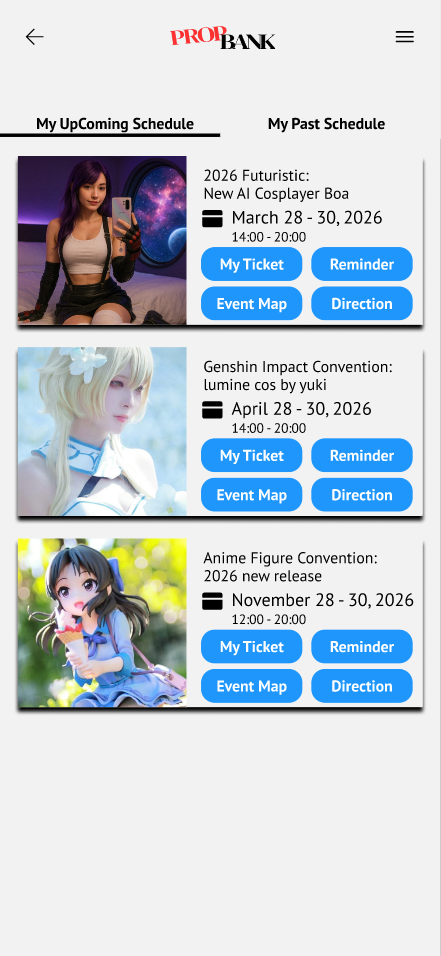
My Upcoming Schedule Page
My Upcoming Schedule
My Ticket Page
My Ticket
Set Reminder Page
Set Reminder
Event Share Page
Event Share Page
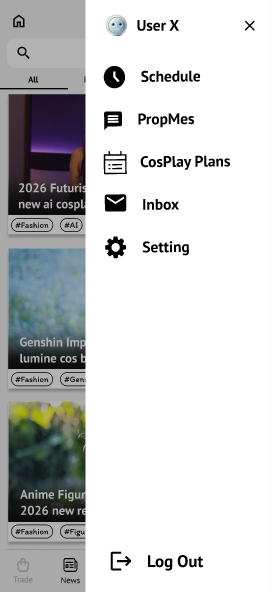
Sidebar
Sidebar

Usability Testing

A usability test was conducted using Maze with 8 participants to evaluate how easily users can complete key CoNews tasks on the hi-fidelity prototype. All 4 tasks achieved a 100% success rate with 0% drop-off, confirming that the core flows are learnable and navigable.

Task n Avg. Time Success Misclick
Find, purchase a ticket, then view ticket in My Schedule 8 26.7s 100% 23.1%
Find, purchase a ticket, then set reminder in My Schedule 5 21.9s 100% 22.5%
Look for the Guests page on an event 5 13.9s 100% 36.0%
Look for the Participants page on an event 4 3.5s 100% 0.0%

Key Findings

Purchase & Schedule Flow (Tasks 1–2)

Both tasks succeeded with 100% completion and similar misclick rates (~23%). Task 1 took longer (26.7s vs 21.9s) as it was participants' first exposure to the purchase flow. The consistent misclick rate across both tasks points to minor friction in the checkout or My Schedule navigation — likely users exploring tabs before finding the right action — rather than a fundamental usability issue.

Guests Page Discoverability (Task 3)

The Guests page had the highest misclick rate at 36%, indicating that users did not immediately know which tab or element to tap on the event detail page. Despite the exploration, all users eventually found it (100% success). This suggests the "Guests" label or its placement on the event page could be made more prominent to reduce scanning time.

Participants Page (Task 4)

The fastest and most precise task — completed in 3.5s with 0% misclick rate. Having already navigated the event detail page in Task 3, users immediately knew where to look. This transfer of learning suggests the event page tab structure is consistent and easy to internalise once encountered.

Overall

Across all 4 tasks: 100% success rate and 0% drop-off. The prototype successfully supports core user goals. The main area for improvement is the discoverability of the Guests tab on the event detail page, which could be addressed by surfacing it higher in the tab order or using a more descriptive label.

How CoNews Fits in PropBank

CoNews is Priority 1 in the PropBank MVP — it is the primary entry point for new users discovering the ACGN community. Its integration with other services ensures that interest sparked by an event naturally flows into the rest of the ecosystem.

Entry & Exit Points

Entry into CoNews

  • Via the shared bottom navigation bar (CoNews icon) from anywhere in PropBank
  • From CreatorHub — a search page in CreatorHub that links directly to the event's CoNews page
  • From the PropBank landing page — featured CoNews section

Exit from CoNews

  • After ticket purchase — user is directed to My Schedule (accessible via the sidebar) to manage their upcoming event
  • Sharing an event with a PropBank friend navigates the user to the PropBank messaging page to continue the conversation
  • Via the shared bottom navigation bar to navigate to other PropBank services

Cross-Service Flows

PropBank Landing Page
CoNews
The featured CoNews section on the PropBank landing page surfaces upcoming ACGN events, drawing users directly into CoNews to explore and purchase tickets
CreatorHub
CoNews
A search page in CreatorHub surfaces related ACGN events, linking users directly to the corresponding CoNews event page
CoNews
My Schedule
After purchasing a ticket, the user is directed to My Schedule (via the sidebar) where they can view their ticket, set reminders, and access event direction and layout map
CoNews
PropBank Messaging
Sharing an event with a PropBank friend routes the user to the PropBank messaging page, enabling social coordination before committing to a ticket purchase

Design Conflicts & How They Were Resolved

Conflict 1 — Event Page Information Overload

Conflict: The initial lo-fi design placed all event-related features — Guests, Participate, Share, Direction, Event Map, and Buy Ticket — on a single event detail page. This created a cluttered interface with too many tabs and buttons competing for the user's attention, making it unclear what the primary action was.

Resolution: Features were split into two distinct phases based on user intent. Pre-purchase features (Guests, Participate, Share) that help the user decide to attend were kept on the event detail page. Post-purchase features (Direction, Event Map, View Ticket, Set Reminder) that help the user prepare for the event were moved to My Schedule, only surfacing after a ticket is purchased. This reduced visual clutter and gave each screen a clear, focused purpose.

Conflict 2 — Inline Ticket Purchase vs External Redirect

Conflict: ACGN events in Singapore often sell tickets through third-party platforms (e.g. Eventbrite, SISTIC). An early consideration was whether CoNews should simply link out to these platforms rather than handling the purchase flow natively, which would reduce development scope but break the in-app experience.

Resolution: The ticket purchase was kept entirely within PropBank. Redirecting users to an external site would interrupt the flow, require re-authentication, and prevent the app from knowing whether a purchase occurred — making post-purchase features like My Schedule and Set Reminder impossible to trigger. An inline purchase flow was the only way to maintain a coherent pre-to-post-purchase journey.

Conflict 3 — Share as Pre-Purchase vs Post-Purchase Feature

Conflict: There was a question of whether the Share function should be locked behind ticket purchase — similar to Direction and Event Map — to keep the event page minimal. Sharing an event you have not committed to attending could be seen as premature.

Resolution: Share was deliberately kept pre-purchase because it serves a fundamentally different purpose — it is a social decision-making tool, not a post-commitment utility. Users often want to share an event with friends to discuss whether to attend together before anyone buys a ticket. Locking Share behind purchase would break this natural group coordination behaviour and reduce the likelihood of conversion altogether.

Conflict 4 — My Schedule Navigation: Sidebar vs Bottom Navigation Bar

Conflict: PropBank uses a shared bottom navigation bar for primary service switching. My Schedule is a personal hub rather than a top-level service, so placing it in the bottom nav would give it equal prominence to CoNews, CreatorHub, and Marketplace — which was inconsistent with its secondary, post-purchase nature.

Resolution: My Schedule was placed in the sidebar (accessed via the hamburger menu), keeping the bottom navigation bar reserved for primary service discovery. This preserves the information hierarchy — users browse and discover through the bottom nav, and manage their personal commitments through the sidebar — without cluttering the main navigation with a screen that is only relevant after a purchase has been made.

AI Feature Design

Friend-Based Event Surfacing

CoNews uses AI to populate the Featured section with events that the user's followed friends are attending. When a friend marks their participation in an event, the AI surfaces that event in the user's Featured tab — giving users a quick, social-driven view of what is happening in their circle.

What the AI does

Current implementation: The AI monitors the Participate activity of friends the user follows within PropBank. When a friend indicates they are attending an event, that event is automatically promoted into the user's Featured section. Each Featured event card shows a label indicating which friend is attending — represented as "Your friend is attending" in the current hi-fi prototype, and personalised to the specific friend's name (e.g. "Alex is attending") in the full AI implementation.

Further AI implementation:

  • Followed guest monitoring — if the user follows a guest (influencer, vTuber, content creator) and that guest is listed as attending an event, the AI surfaces that event in Featured with a label such as "[Guest Name] is appearing at this event"
  • Past event purchase history — the AI analyses the user's past attended events (visible in the Past Schedule tab in My Schedule) to identify preferred event types and recommend similar upcoming events

User control & override

  • Users can turn off friend-based suggestions from CoNews settings, reverting the Featured section to a general curated listing
  • The Featured strip is collapsible — users who prefer to browse without social influence can hide it entirely

Why this feature

User research showed that a key motivation for attending ACGN events is knowing that friends or community members will be there. Rather than making users manually check each friend's profile, the AI aggregates this social signal passively and surfaces it in one place — reducing the effort needed to make a socially-informed event decision.

AI-Automated Inbox & Email Notifications

PropBank's Inbox page serves as the hub for AI-driven automated email communications. The AI automation layer monitors key user lifecycle and transactional events across the platform and triggers personalised emails without any manual intervention — ensuring users receive timely, relevant updates at the right moment.

Automated triggers

  • New user welcome email — when a new user registers and joins PropBank, the AI automation immediately dispatches a welcome email.
  • Event ticket purchase invoice — when a user completes a ticket purchase through CoNews, the AI automation generates and sends an invoice directly to the user's in-app Inbox. The invoice includes the event name, date, ticket quantity, total amount paid, and a confirmation reference number — serving as both a receipt and an entry record for the event.

Why AI automation for the Inbox

Manual email dispatch is error-prone and does not scale as PropBank's user base grows. By delegating these transactional communications to an AI automation layer, PropBank ensures every user receives the right message at the right time — consistently and without delay — regardless of transaction volume.

User-facing impact

  • Users see all automated emails surfaced in the Inbox page within PropBank, keeping communications in one place alongside other notifications
  • Invoice emails give users a verifiable paper trail for ticket purchases, reducing support queries and building trust in the platform

AI Tools Used in Design Process

Google Gemini — Idea Evaluation for CoNews Service

Early in the design process, I provided Gemini with the concept of the PropBank super-app and presented multiple feature ideas for CoNews. I asked Gemini to evaluate each idea — identifying what was strong and what had potential weaknesses — grounded in our group's own problem statement and user interview findings.

AI acted as a sounding board to pressure-test ideas before committing to them in the wireframe. The final decisions on which features to include remained mine, informed by both the AI feedback and the qualitative insights from our own research.

Google Gemini — Icon & Image Generation for PropBank Landing Page

I provided Gemini with the concept of each of PropBank's 5 services and my visual requirements, then asked it to generate suitable icons and images for the landing page. The landing page is the first screen users see after entering PropBank — its purpose is to give users an immediate understanding of each service so they can navigate directly to what they need.

The AI-generated visuals were reviewed and selected based on how well they communicated each service's identity. Final curation and placement decisions were made by me.

Google Gemini — Figma Interaction Guidance

When building interactions within the Figma prototype, I described the interaction I wanted to achieve to Gemini and asked it to walk me through the step-by-step process to implement it in Figma. This allowed me to learn specific prototyping techniques efficiently without needing to search through documentation manually.

I retained full control over the design decisions — AI was used purely as a technical guide on how to execute what I had already decided to build.

Claude Code — Portfolio Development

Claude Code was used to assist in building and updating this portfolio website. I directed Claude Code on what content to include, how it should be structured, and what changes to make — based on my own understanding of the project and the work completed throughout the module.

Claude Code handled the repetitive and tedious implementation work, while I remained in charge of all content decisions — what information to input, how it is framed, and whether the output accurately reflected my design intent. All written content reflects my own understanding of the design rationale and project context.

Design Process Reflection

Individual Contributions & AI-Driven Feature

As the member responsible for CoNews and several shared PropBank screens, my individual contributions spanned both service-specific design and group-level shared utilities.

  • CoNews Service — designed the full CoNews experience including the event feed, event detail page, ticket purchase flow, and all 5 task flows. Established the pre-purchase vs post-purchase feature split based on MS2 tutor feedback, and designed the AI-driven Featured section that surfaces events attended by the user's PropBank friends.
  • Login, Register & Forgot Password pages — designed the onboarding and authentication screens shared across all PropBank services, ensuring a consistent entry experience for new and returning users.
  • PropBank Landing Page — designed the landing page that greets users on first entry, presenting all 5 PropBank services with AI-generated icons so users can immediately understand each service and navigate to their intended destination.
  • Sidebar — My Schedule Page — designed the centralised post-purchase hub accessible via the sidebar hamburger menu, comprising My Upcoming Schedule (with Ticket, Reminder, Direction, and Event Map for each event) and My Past Schedule (a full history of events the user has attended, used as a signal for future AI recommendations).
  • Inbox — designed the in-app inbox that sends users a confirmation message upon successful ticket purchase, providing a receipt and event summary within PropBank without relying on external email.

The AI-driven feature — friend-based event surfacing in the Featured section — was designed and owned by me as part of the CoNews service, with a roadmap for further AI signals (followed guests, past event history) documented for future implementation.

Trade-offs & Challenges

Direction & Map: gated vs always-on

Initially, all event page features — including Direction and Event Map — were designed to be permanently accessible. After reflection and MS2 feedback, I decided to gate these behind ticket purchase. The trade-off: a user who wants to plan travel before committing cannot access the directions, but this was accepted because:

  • The venue name and address remain always visible on the event detail page — enough for pre-purchase planning
  • Turn-by-turn directions and booth maps are only meaningful once you are committed to going
  • Keeping the event detail page clean during the decision phase reduces cognitive load

Features that help users decide whether to attend (Guests, Participants, Share) are always accessible. Features that help users get there are unlocked after purchase. This mirrors how real-world event tickets work — you get logistics details in your confirmation email, not on the event poster.

First-time UI/UX designer — learning curve with tools

CS3240 is my first UI/UX design course. Coming in with no prior design experience, learning Figma and Maze from scratch while simultaneously producing deliverables at each milestone was one of the biggest challenges throughout the project.

My approach was to keep learning incrementally — searching YouTube tutorials for specific Figma techniques, asking AI (Google Gemini) to walk me through step-by-step interactions I wanted to prototype, and applying what I learned immediately to the project. It was challenging, but building the skills in the context of a real design problem made the learning stick more than following tutorials in isolation.